Storefront display
Turn on the app embed, choose where options appear, match your theme and add custom CSS.
Quick answer
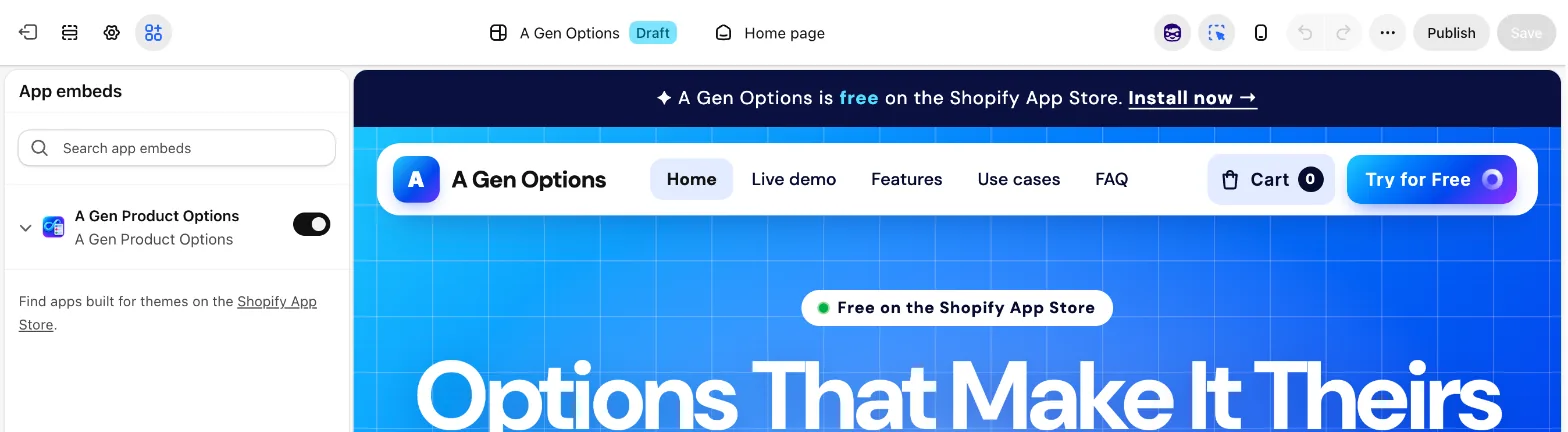
Options appear through the A Gen Product Options app embed: switch it on under App embeds in the theme editor and save. They show below the variant picker or above Add to cart, or wherever you place the app block. They match your theme's fonts, colors and corners unless you choose Custom in Settings.
Last updated
The app embed
Options appear on your store through the A Gen Product Options app embed. Turn it on in the theme editor under App embeds and click Save: Home's Open theme editor button takes you straight there. It works with every theme, and you never edit theme code.
To turn options off, go to Online Store → Themes → Customize → App embeds and switch off A Gen Product Options.
Placement
| Placement in Settings | Where options show |
|---|---|
| Below the variant picker | Under the product's variant picker. Recommended for most themes, and the starting choice. |
| Above the Add to cart button | Just above Add to cart. |
| Use the app block | Wherever you put the A Gen Product Options app block. |
To choose an exact spot in an Online Store 2.0 theme, open the product template in the theme editor, click Add block, choose A Gen Product Options and drag it where you want it. A placed block always takes priority over the placement setting.
Matching your theme
By default, options match your theme's fonts, colors and corners. Under Appearance in Settings, choose Custom to set a Font, Corners and an Accent colour (used for selected buttons, swatch rings, switches and steps). The option editor's preview uses them too.
Custom CSS
Custom CSS in Settings is applied after the default styles. Target classes starting with .agen-.
.agen-muted {
  font-style: italic;
}The product price
With Update the product price live on, the price updates as shoppers choose, in every price block the theme shows for the product (some themes repeat it in a sticky add-to-cart bar). Percentage prices are recalculated when the shopper changes variant.
Why is the Buy it now button hidden?
Buy it now skips the product form, so it would drop the shopper's choices and their prices. The app hides it on products that have options, and only there.
Does it slow down my store?
Very little: one deferred script and one stylesheet, only on product pages where options could apply.
- The embed only loads on product pages, and only when options could apply there.
- It adds one stylesheet and one script, and the script loads with
defer, so it doesn't block the page. - Checkout pricing runs inside Shopify, not on your storefront.
Stuck on something?
Check Troubleshooting, or email us with your store URL and we’ll help.
Email support