Price formulas
Work out an add-on price from other options, like width × height, with the Price formula option type.
Quick answer
A Price formula option adds a price worked out from the shopper's other answers, like width × height × a rate for made-to-measure products. Formulas can use numbers, option names in braces, the product price, basic arithmetic, and min, max, round, ceil, floor and abs. A formula charges nothing until every number it uses is filled in.
Last updated
A Price formula option adds a price worked out from the shopper's other answers. Use it for made-to-measure products: curtains by width and height, a sign by its number of letters, fabric by the meter.
Write a formula
- Add the options the formula needs first, for example two Number options labeled “Width” and “Height”.
- Add a Price formula option.
- In Formula, start typing an option's name and pick it from the list. It's added in braces, like
{Width}. - Use Try it to enter sample numbers and a Product price, and check what the formula adds.
{Width} * {Height} * 0.05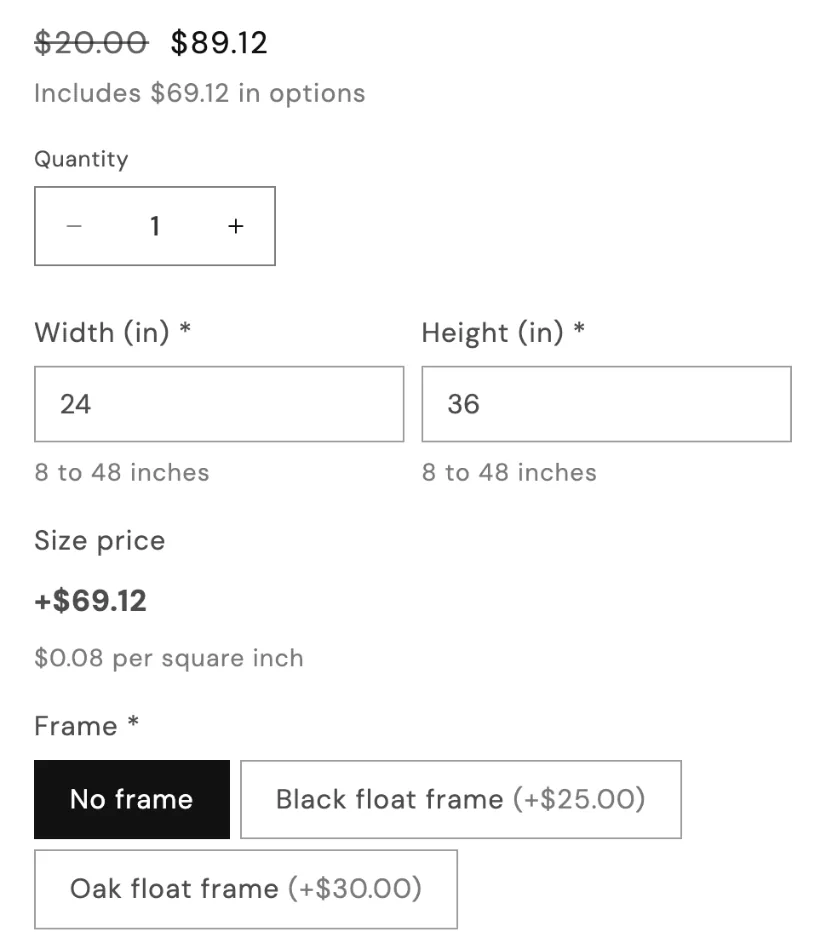
What a formula can use
| You can use | Details |
|---|---|
| Numbers | For example 0.05 or 12. |
| Option names in braces | {Width}. Number, Integer and Range slider options give the number typed in. Dropdown, Radio buttons, Buttons, Color swatch, Image swatch, Color dropdown and Image dropdown give the first number in the chosen value's name: “2.5 m” gives 2.5. |
{price} | The product price. |
| Operators | + - * / ^ (power), brackets, and a minus sign in front of a number. |
min(…) | The smallest of the values, for example a price cap: min(…, 200). |
max(…) | The largest of the values, for example a minimum charge: max(10, …). |
round(…) | Round to the nearest whole number. |
ceil(…) | Round up, for example to charge for started meters. |
floor(…) | Round down. |
abs(…) | The value without its sign. |
Formulas only do arithmetic: there are no other functions, variables or text.
When does a formula charge?
When the shopper has filled in every number the formula uses: its result is added to the price.
- The result is added to the price. A result below zero adds nothing.
- A formula charges nothing unless the shopper filled in every number it uses. If a chosen value has no number in its name, it adds nothing either.
- Typed numbers are kept inside each option's Min value and Max value, so set those to the sizes you can make.
Examples
max(25, {Width} * {Height} * 0.05)ceil({Length}) * 8{price} * 0.1 * {Panels}Note
If the formula editor says “no option named … can be used in a formula”, the name in braces doesn't match an option that gives a number. Check the spelling, or that the option is a Number, Integer, Range slider or a choice type whose values contain numbers.
Stuck on something?
Check Troubleshooting, or email us with your store URL and we’ll help.
Email support