Option sets
Build a group of options once and show it on all products, chosen products, collections or product tags.
Quick answer
An option set is a group of options, like engraving or gift wrap, that you build once and show on many products. On its Applies to tab, choose All products, Specific products, Collections or Product tags. New sets start as Draft; set them to Active and save to show them. When several sets apply, priority 1 shows first.
Last updated
An option set is a group of fields, like engraving or gift wrap, that you show on one or many products. Find them under Option sets in the app.
Create an option set
- Click Create option set.
- Enter a Set name and click Create and add options.
- Add options with Add option, or reuse one you already built with Copy an existing option.
- Choose Active or Draft under Status, set Applies to, then click Save.
New option sets start as Draft, so nothing shows on your store until you set them to Active and save.
Which products does an option set show on?
On the Applies to tab, pick one of the choices under Show this option set on:
| Choice | What it covers |
|---|---|
| All products | Every product in your store, including products you add later. |
| Specific products | Products you pick one by one. |
| Collections | Products in the collections you choose, including products added to them later. |
| Product tags | Products with any of the tags you add, for example “made-to-order”. |
When you tag a product or add it to a collection, matching option sets attach to it automatically.
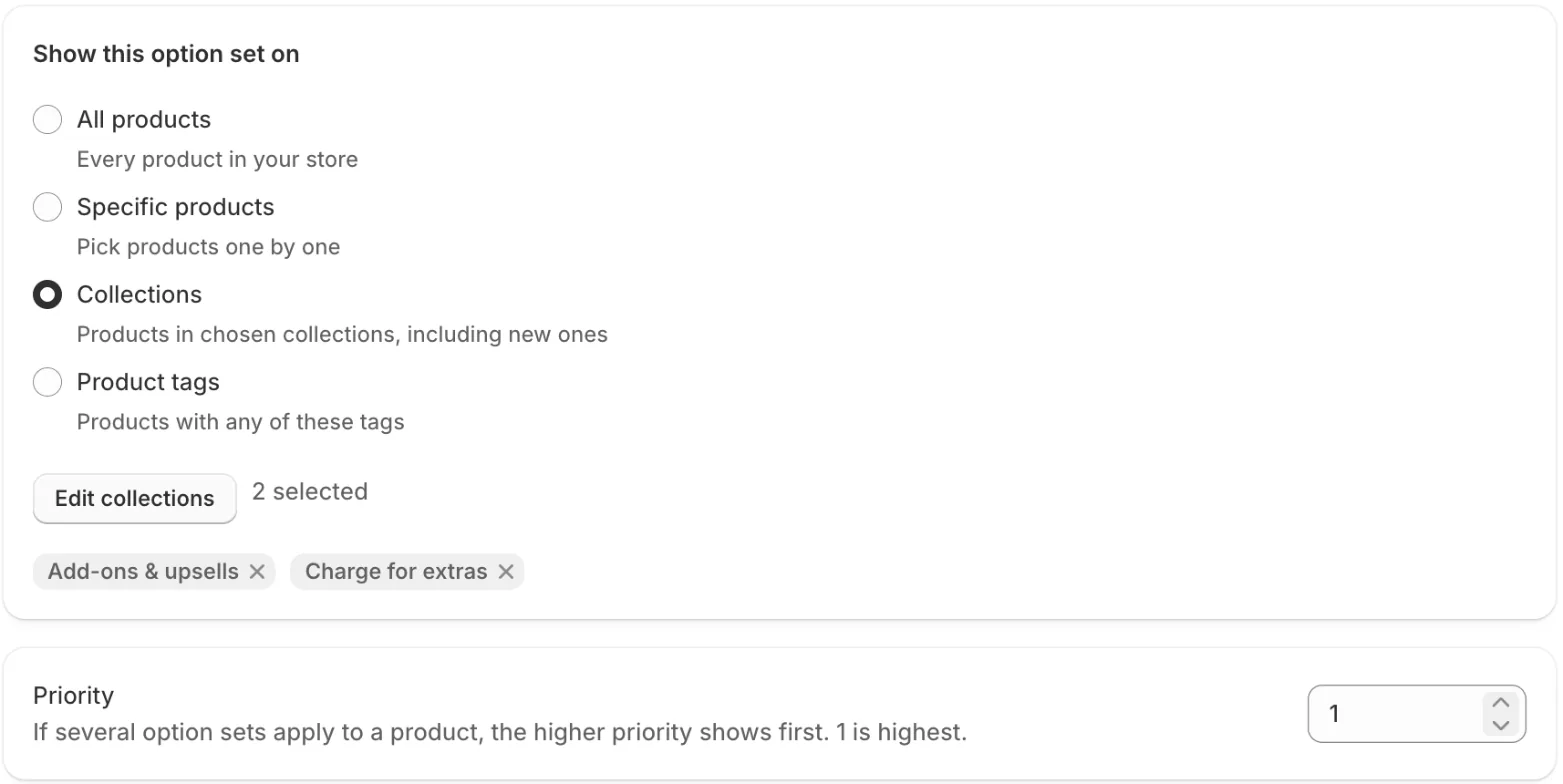
Which option set shows first?
If several option sets apply to a product, the higher priority shows first. 1 is the highest. A product's own options always come after its option sets: see Product options.
Edit options
Click an option to open it. Each option card has:
- Badges that sum it up: Required, Has prices, Has conditions and Needs attention when something must be fixed.
- Move up, Move down, Duplicate and Delete option. You can also drag options to reorder them.
- The fields for its type. Option types lists them for every type.
If something blocks saving, a banner lists each issue, such as “Dropdown: add at least one value”. Click an issue to jump to that option.
Save, activate and delete
- Save and Discard appear in the save bar when you have changes.
- Saves that touch more than 50 products are published in the background so the editor stays fast. You'll see “Updating products in the background”, and product pages pick up the change within a few minutes.
- On the Option sets list, select sets to Activate, Set to draft or Delete them in bulk. You can filter the list by status and search it by name.
- To delete one set, open it and click Delete. Deleting removes its options from your product pages straight away, and it can't be undone.
Stuck on something?
Check Troubleshooting, or email us with your store URL and we’ll help.
Email support