Conditional logic
Show an option only when another answer, or the selected variant, matches your rules.
Quick answer
Every option has a Conditions section. Add a rule to show the option only when another option has, or doesn't have, a value, when a field is filled in, or when the selected variant matches, like Size is XL. Combine rules with all or any. Hidden options aren't sent with the cart, so they're never charged.
Last updated
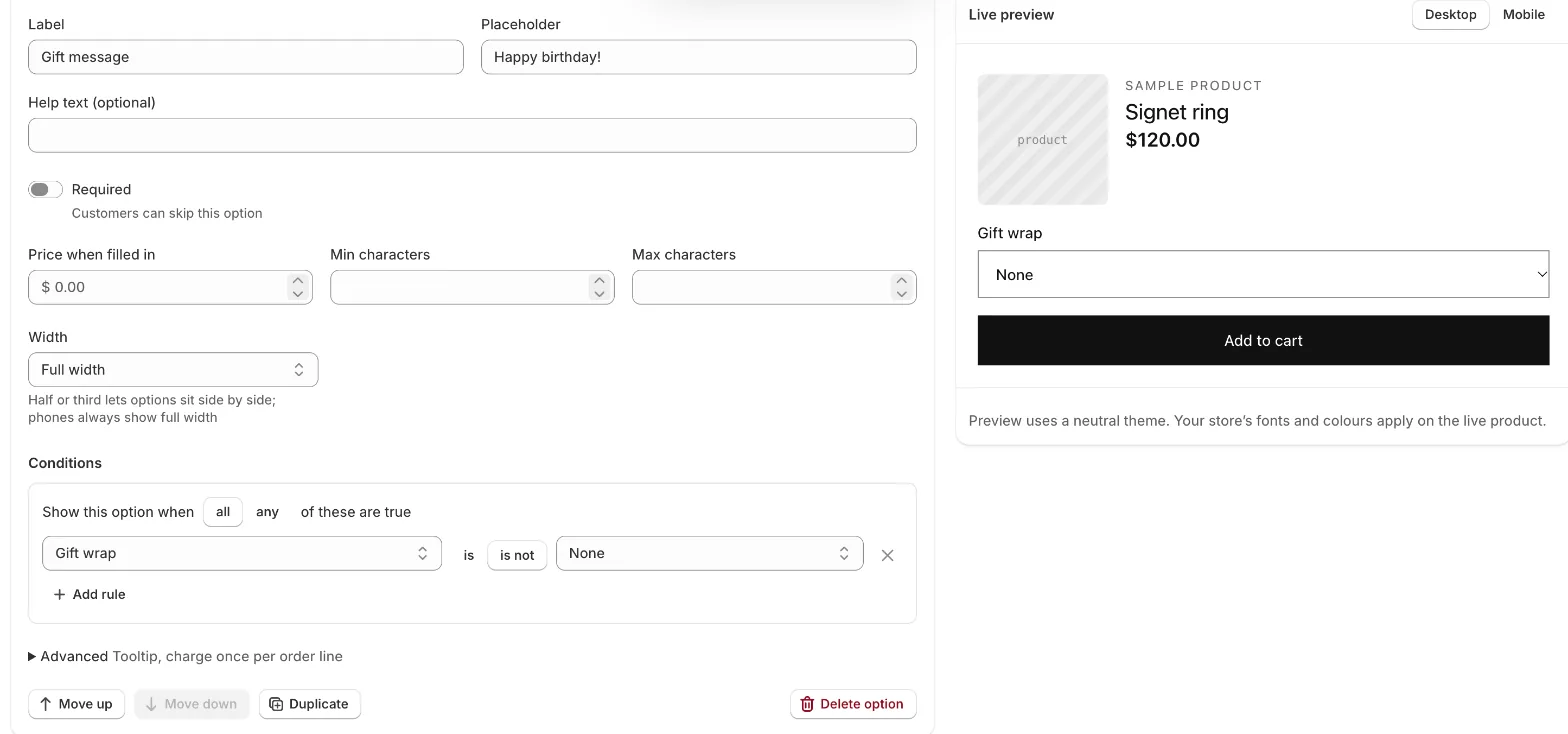
Every option has a Conditions section. With no rules it's always shown. Add a rule to show it only in some cases, for example a gift message only when gift wrap is chosen.
Add a rule
- Open the option and click Add rule under Conditions.
- Under When, pick another option, or Variant option (e.g. Size)… to use the product's variants.
- Choose is or is not.
- Pick the value. For a variant rule, type the variant option's name (like “Size”) and the value (like “Large”).
With more than one rule, choose Show this option when all of these are true or any of them.
Option rules and variant rules
| Rule on | Matches when |
|---|---|
| A choice option | The shopper picked (or didn't pick) that value. |
| An input option | The field is Filled in. For File upload it's Uploaded. |
| A variant option | The selected variant has that value for that option name. Names and values are matched without regard to capital letters. |
Display options (headings, dividers and so on) can't be used in a rule, but they can have rules of their own.
Things to know
- A rule on an option the shopper hasn't answered yet isn't met, for is and is not alike.
- Hidden options aren't sent with the cart, so they're never charged.
- A rule can't depend on its own option. If you delete an option that a rule uses, the rule shows Deleted option and the set can't be saved until you fix it.
- Required options only have to be answered when they're shown.
Examples
- Show Gift message when Gift wrap is not None.
- Show Name and Number fields when the shopper turns on a Switches value called “Add name & number”.
- Show a Sleeve length option when the variant's Size is XL.
Troubleshooting
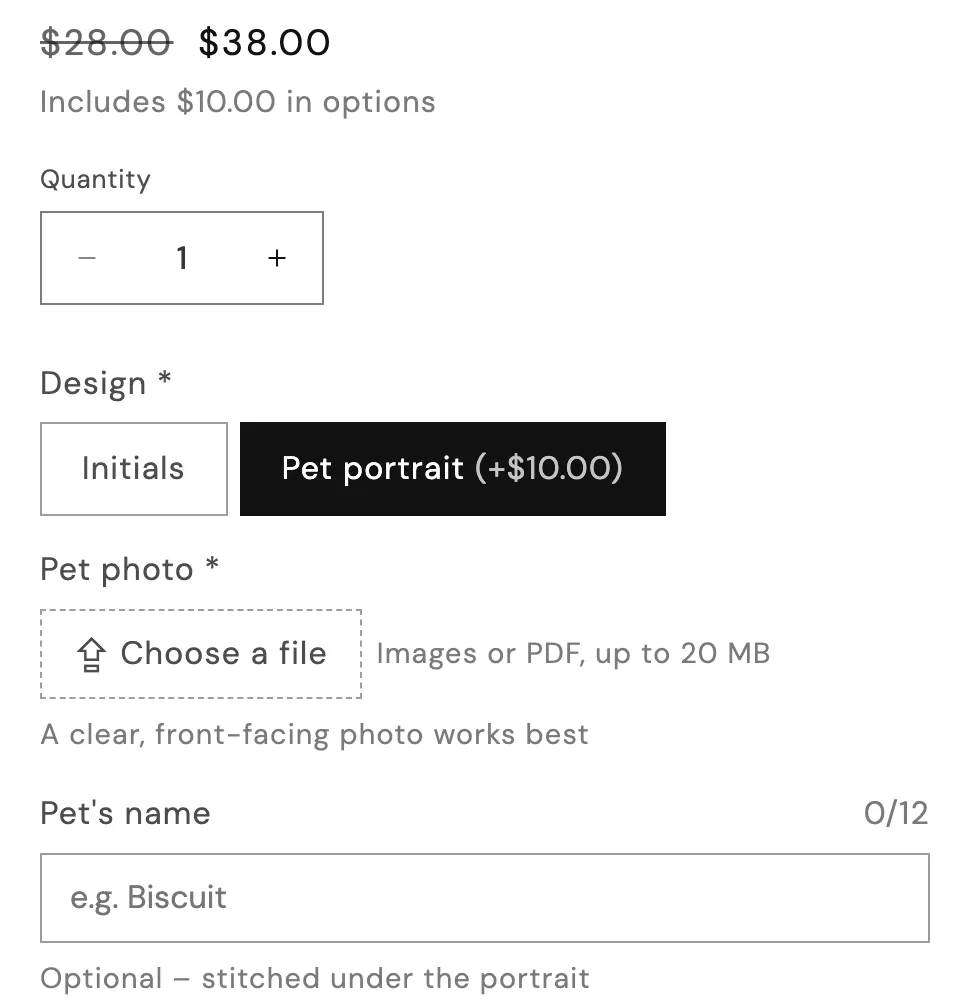
- An option never appears: check that the rule's value is one the shopper can pick, and that all/any is set the way you mean.
- A variant rule never matches: the option name and value must match the product's variant option exactly, apart from capital letters.
Stuck on something?
Check Troubleshooting, or email us with your store URL and we’ll help.
Email support