Product options
Add options that belong to a single product, and see how they combine with option sets.
Quick answer
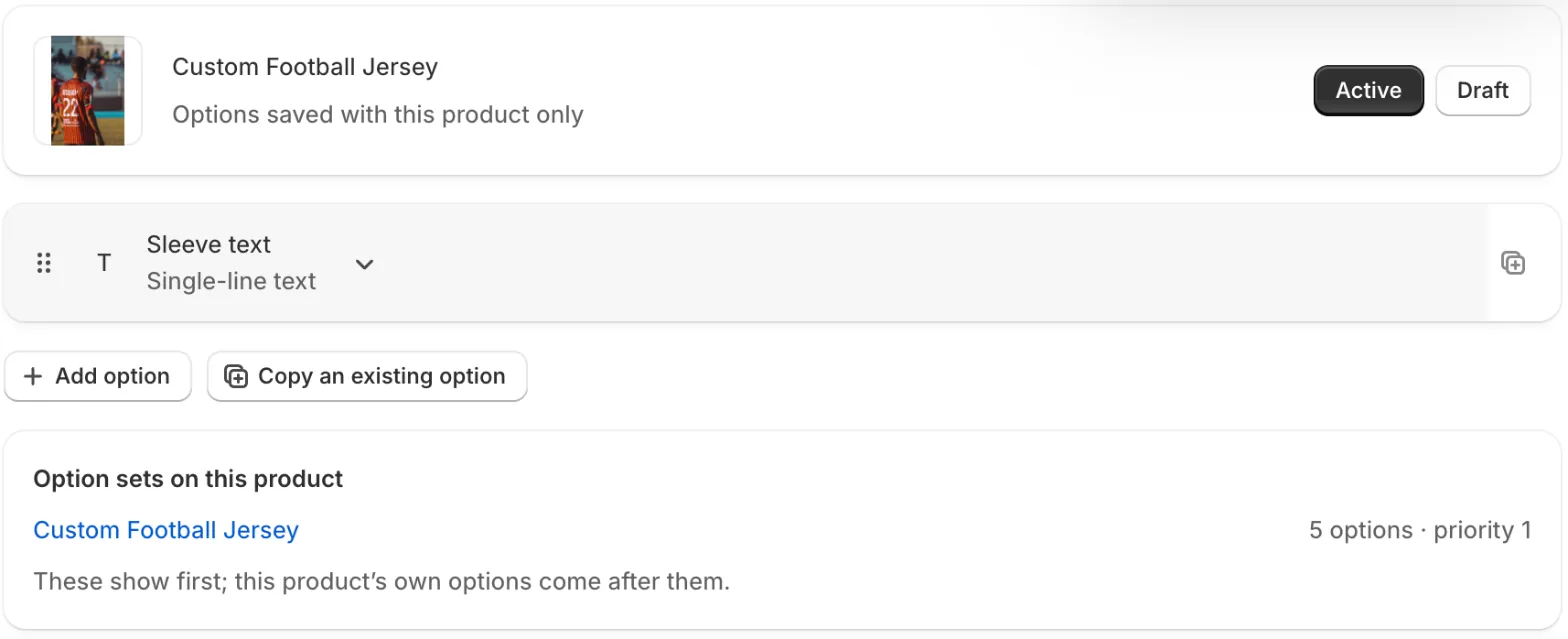
Product options belong to one product and are saved with it, not as an option set. Create them under Product options, pick the product, and add options exactly as you would in a set. Any option sets that apply to the product show first, and the product's own options come after them.
Last updated
Product options are options that belong to a single product, like a custom size chart or a one-off engraving. They're saved with that product, not as an option set. Find them under Product options in the app.
Add options to one product
- On Product options, click Create product options and pick a product.
- Add options with Add option, exactly as in an option set.
- Choose Active or Draft, then save.
How do product options combine with option sets?
The product page lists Option sets on this product, with each set's number of options and priority. Those sets show first; the product's own options come after them. If no option sets apply, the product's own options are all that shows.
Manage product options
- The Product options list shows every product with its own options. Filter it by status or search by product.
- Select products to Activate, Set to draft or delete their options in bulk.
- To remove one product's options, open it and delete them. You're asked to confirm first.
Stuck on something?
Check Troubleshooting, or email us with your store URL and we’ll help.
Email support