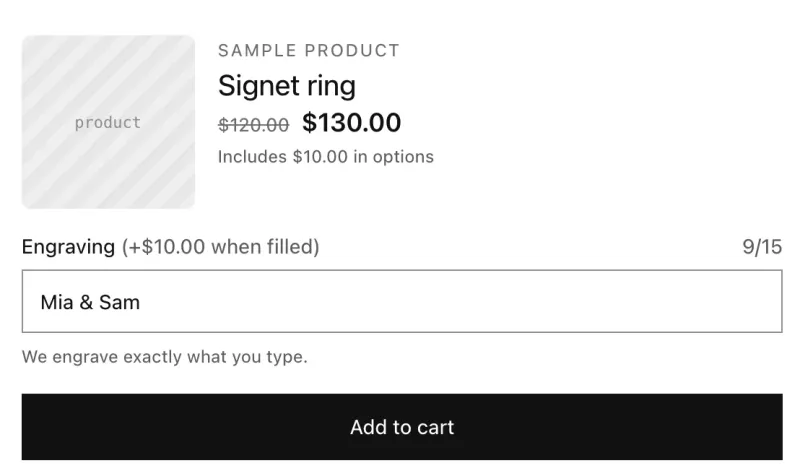
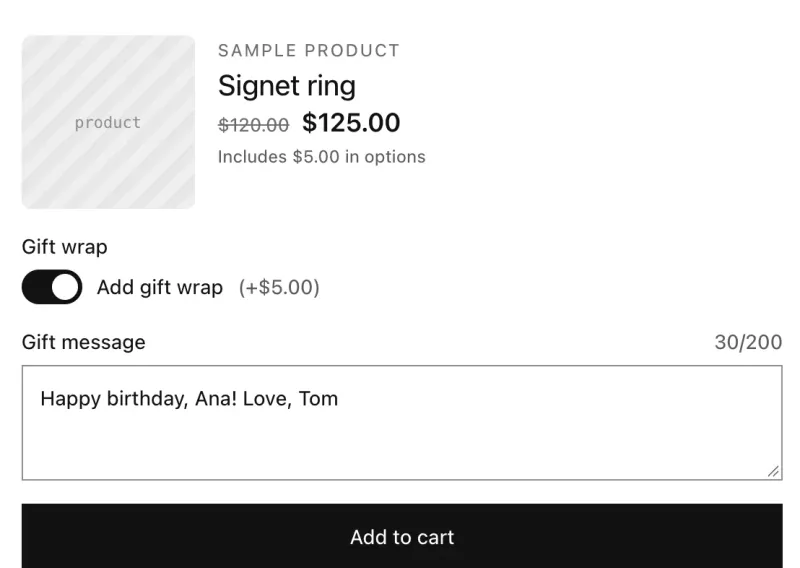
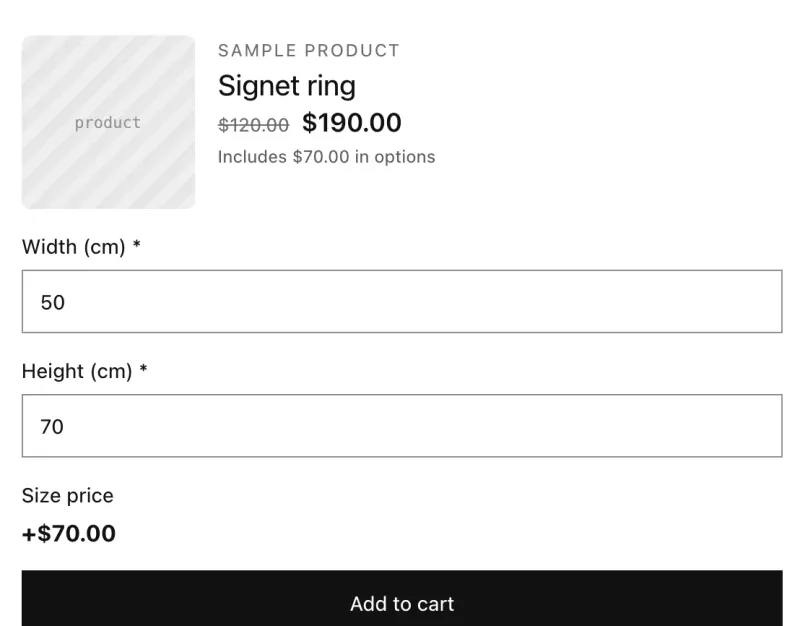
Quick answer
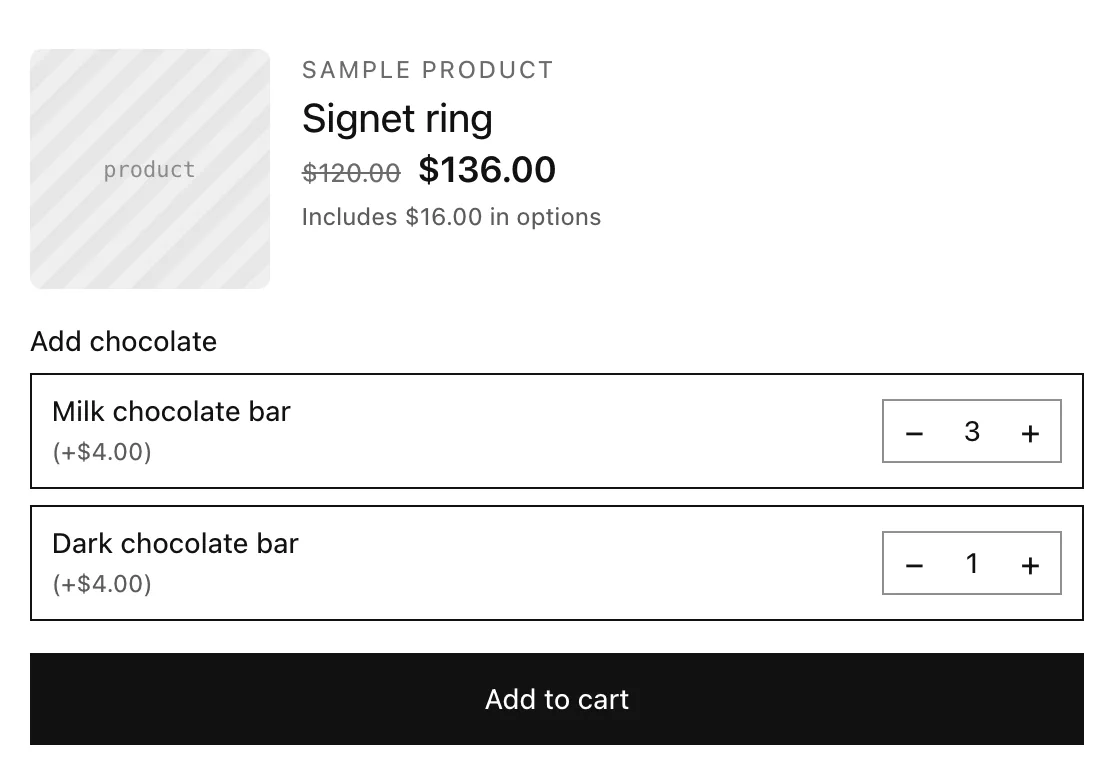
Add an Add-on quantity option labeled Add chocolate with two values, Milk chocolate bar and Dark chocolate bar, each priced at 4, and set Max quantity per add-on to 5. Shoppers pick a quantity for each extra with − and +, each one is charged per unit, and checkout never charges more than the maximum.
Last updated
You'll add a list of extras to a gift box, each with its own − and + quantity. Each extra's price is multiplied by the quantity the shopper picks.
What you’ll build
Step 1: Add the extras
- Click Add option and choose Add-on quantity. Label: “Add chocolate”.
- Under Values and prices, add “Milk chocolate bar” and “Dark chocolate bar”, each with Price 4. You can add a picture to each value.
- Max quantity per add-on: 5.
Optional: set Picture shape, Picture size and Choices per row to lay the extras out.
Step 2: Activate and save
- Set Status to Active, apply the set to your gift boxes and click Save.