Quick answer
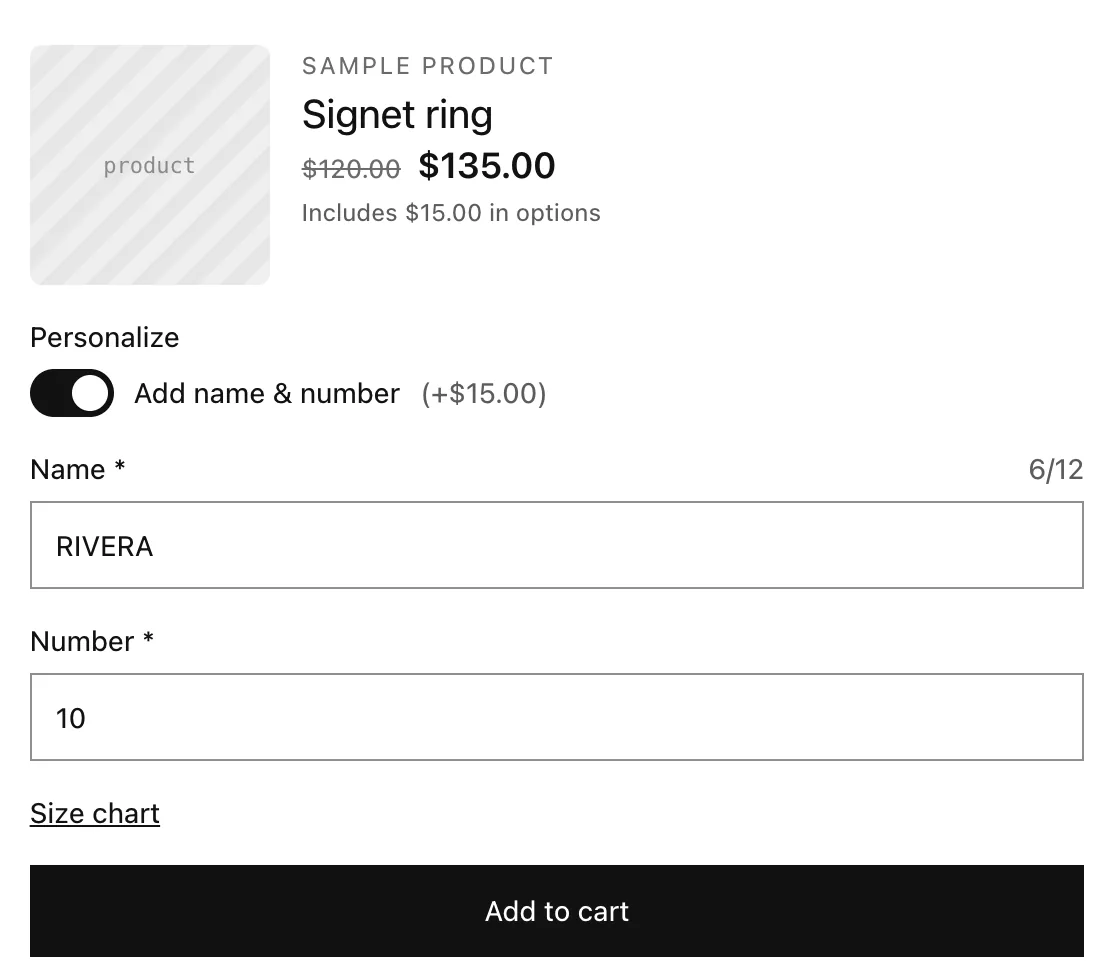
Add a Switches value, Add name & number, priced at 15. Add two required Name fields, 12 characters for the Adult fit and 8 for Kids, each shown by a variant rule, plus a required Number from 0 to 99. They appear only when the shopper turns the switch on, and a Pop-up holds the size chart.
Last updated
You'll sell a jersey whose variants have a Fit option with the values “Adult” and “Kids”. Shoppers can add a name and number for $15. Adult names allow 12 characters and kids' names 8, using a variant rule.
What you’ll build
Step 1: Add the switch
- Click Add option and choose Switches. Label: “Personalize”.
- Name the value “Add name & number” and set its Price to 15.
Step 2: Add a name field per fit
- Add a Single-line text: Label “Name”, Max characters 12, Required on.
- In its Conditions, add two rules and keep all: “Personalize” is “Add name & number”, and Variant option (e.g. Size)… with name “Fit” is “Adult”.
- Click Duplicate on the Name option. In the copy, set Max characters to 8 and change the variant rule's value to “Kids”.
Note
Rules in one option all use the same all or any, so this recipe uses two Name options rather than one option with mixed rules.
Checkout and variant rules
The product page makes shoppers fill in a required Name before adding to cart. The checkout check can't see variant option names, so it doesn't enforce options shown by a variant rule: a cart filled outside the product page could reach checkout without a name.
Step 3: Add the number
- Add an Integer: Label “Number”, Min value 0, Max value 99, Required on.
- Conditions: “Personalize” is “Add name & number”.
Step 4: Add a size chart
- Add a Pop-up. Link text: “Size chart”.
- Add your measurements in Window text, or a picture of the chart in Image (optional).
Step 5: Activate and save
- Set Status to Active, apply the set to your jerseys and click Save.