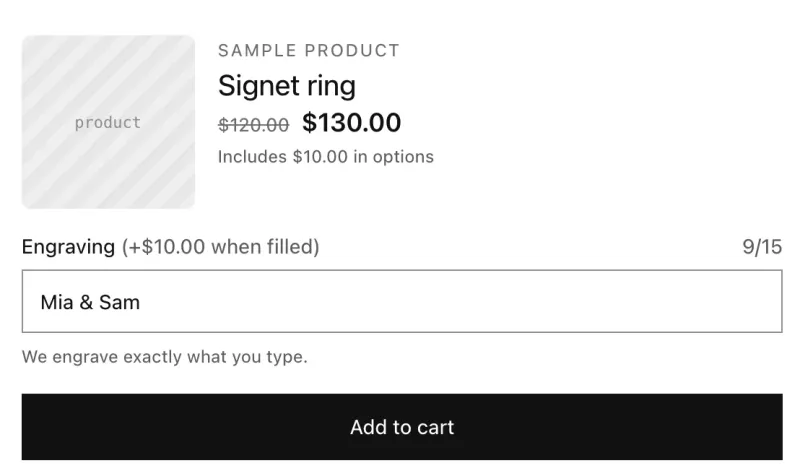
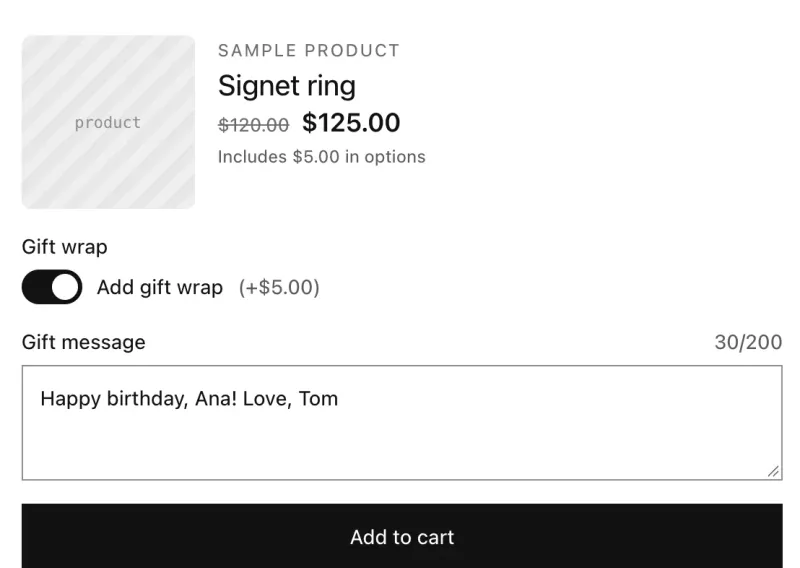
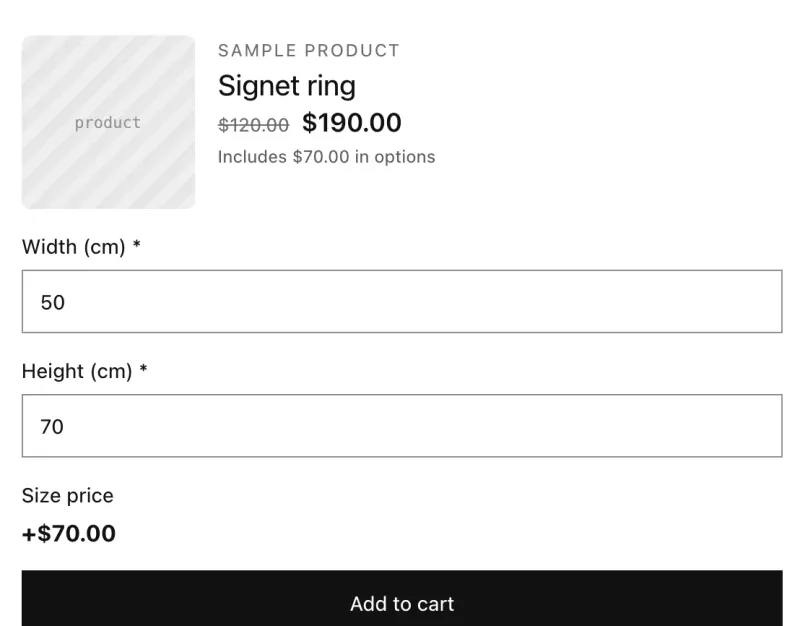
Quick answer
Add a Paragraph that explains what to upload, then a required File upload option labeled Your photo. Shoppers can't add to cart without a photo, files go straight to your Shopify Files, and the link is saved on the order. Turn on the checkout check so carts filled another way can't skip the photo.
Last updated
You'll ask shoppers to upload the photo to print. The file goes straight to your Shopify Files and its link is saved on the order, so you can open it when you fulfill.
What you’ll build
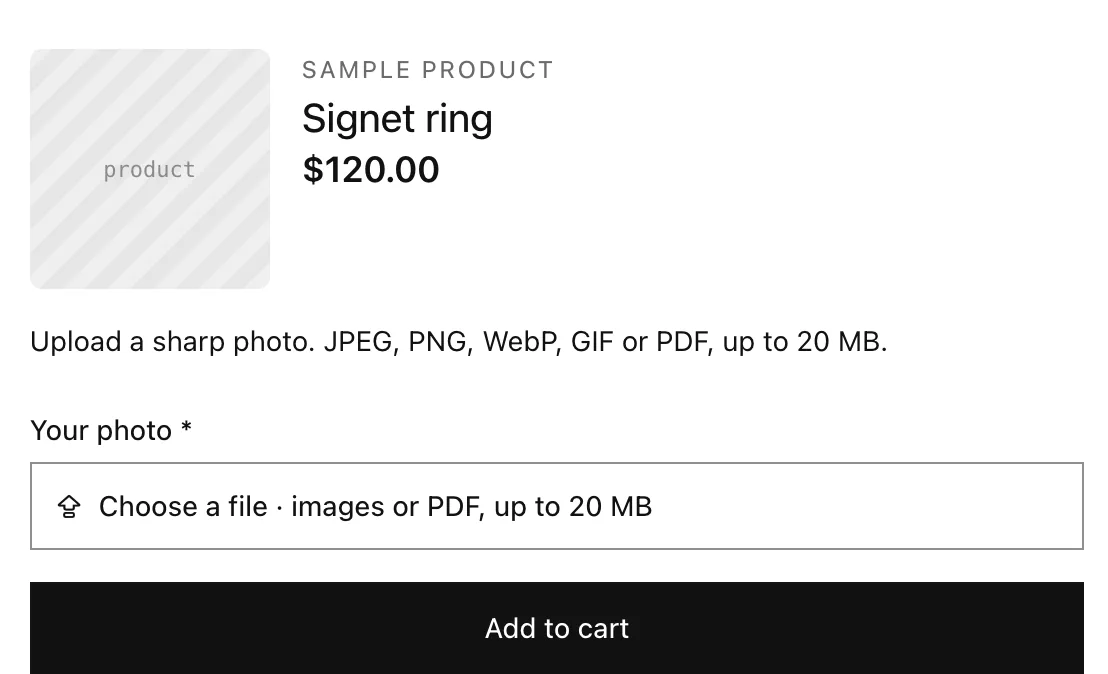
Step 1: Explain what to upload
- Click Add option and choose Paragraph.
- In Text, write a short guide, for example: “Upload a sharp photo. JPEG, PNG, WebP, GIF or PDF, up to 20 MB.” Use the Bold button for the key point.
Step 2: Add the upload field
- Click Add option and choose File upload. Label: “Your photo”.
- Turn Required on so the photo can't be skipped.
- Optional: set Price when a file is uploaded, for example for a photo-printing fee.

Shoppers attach their file on the product page, before adding to cart. Step 3: Decide how long to keep uploads
Uploads stay in Content › Files until you delete them. Delete shopper uploads after 90 days in Settings removes them automatically, but then links on orders older than 90 days stop working. Leave it off if you might reprint later.
Step 4: Turn on the checkout check
Because the photo is required, turn on the A Gen Product Options checks rule under Settings › Checkout › Checkout rules in your Shopify admin. Checkout then stops carts that reached it without the photo.